
Suppliers who are providing responses for the first time must be registered as your company's suppliers. The procedure is as follows:
Supplier Registration Procedure
-
Send the Supplier Registration URL to the Supplier Obtain the URL from "Copy Supplier Registration URL" on the Supplier List screen. Then, share this URL with the supplier via email, informational sessions, or other methods.
Please note that the supplier's assigned group will be automatically registered based on the group to which the buyer's account (who issued the URL) belongs. For example, if Supplier A registers using a URL issued by a buyer account belonging to Sales Group 1, then Supplier A's assigned group will be Sales Group 1.
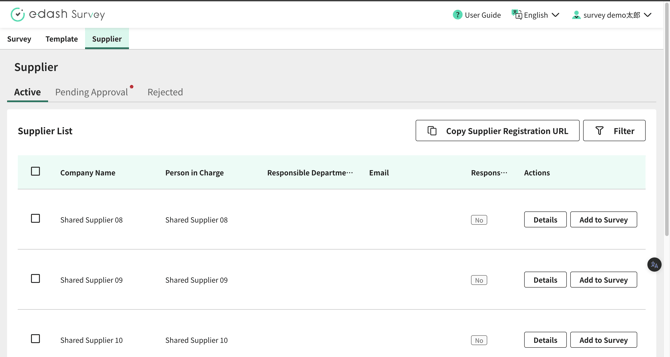
- Supplier Account Creation / Registration with Your Company This step is performed by the supplier. Please refer to here for detailed instructions on the specific actions suppliers need to take.
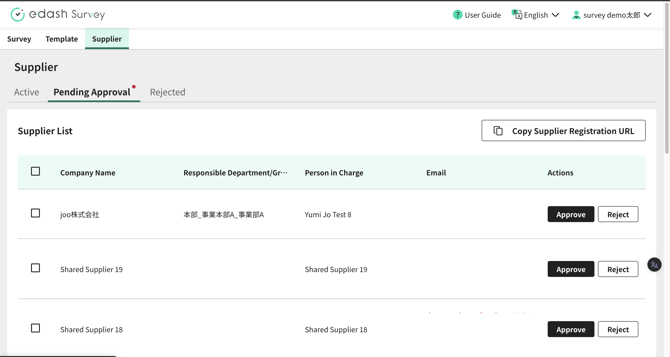
- Approve Registration Request from Supplier On the "Pending Approval" tab of the Supplier List screen, click the "Approve" button to register the supplier as one of your company's suppliers. If multiple registration requests are received from email addresses within the same domain, those email addresses will be displayed in red text. If you wish to receive only one response per supplier, you can achieve this by rejecting subsequent email addresses from the same domain.
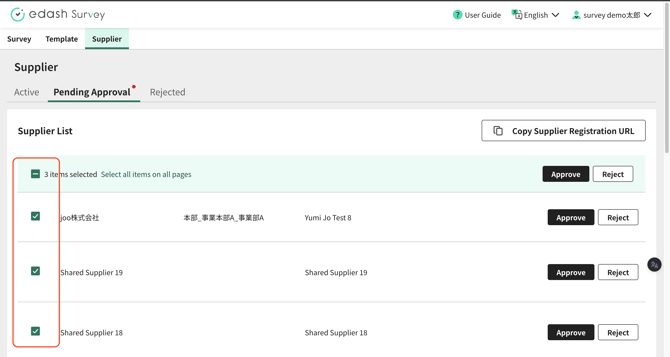
To approve multiple suppliers simultaneously: Select the checkboxes in the table and then click the "Approve" button that appears at the top of the table.
Other Supplier Operations
Searching for Suppliers
You can search for suppliers using the search functionality on the Supplier List screen.