
This section outlines the process for creating a survey, which is an event designed to collect responses from suppliers registered with your company. You can create a survey by following these steps:
Survey Creation Procedure
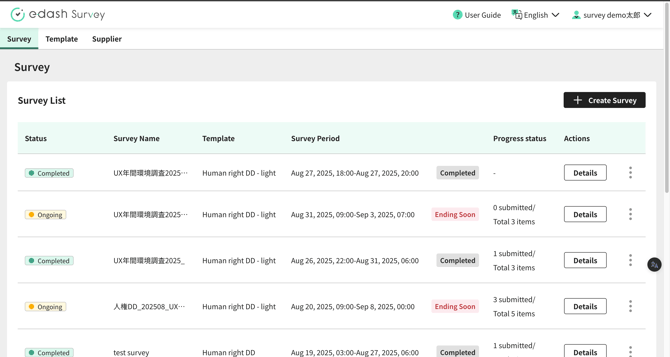
- Navigate to the Survey Creation Screen from the Survey List Screen Click the "Create Survey" button on the Survey List screen.
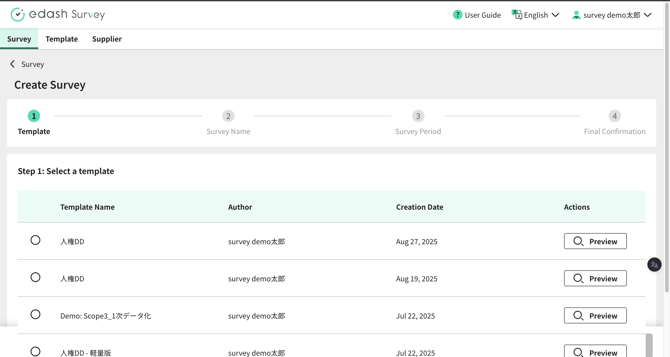
- Select a Template Choose the template you wish to use for the survey.
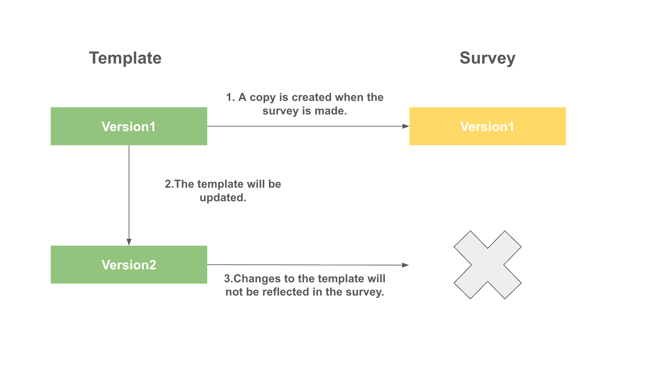
Please note that the content of the template at the time of survey creation will be copied as the survey's data. Therefore, any changes made to the original template after the survey has been created will not be reflected in the survey itself. (See "Reference 1" below).
Reference 1
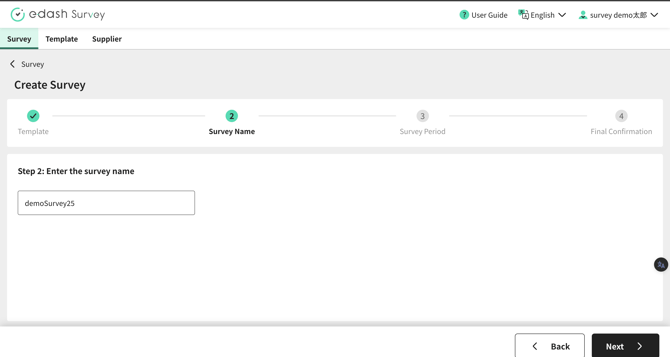
- Set the Survey Name Assign a name that identifies the survey. Please be aware that this survey name will be visible on both the buyer's administration screen and the supplier's interface.
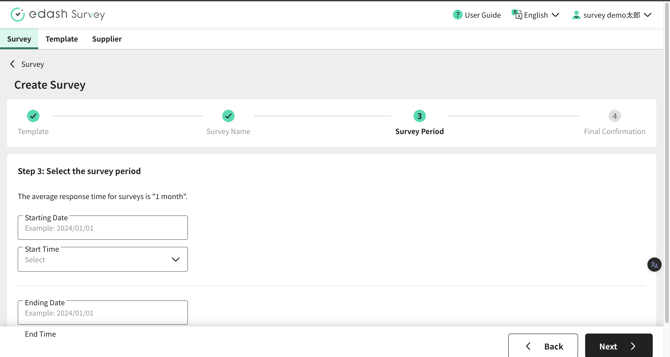
- Define the Implementation Period Set the start and end dates and times for the survey. The implementation period can also be configured at a later stage.
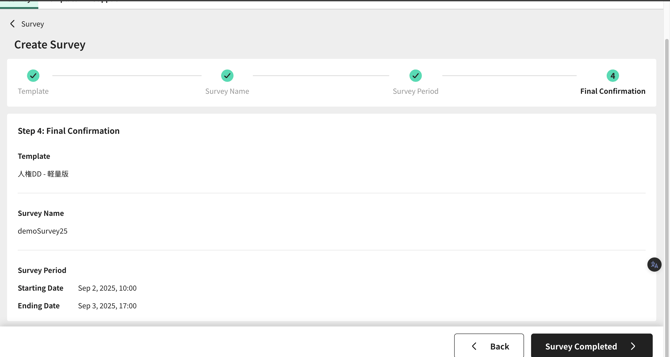
- Review Content and Click "Complete Survey" Review the settings configured in steps 1-4. If everything is satisfactory, click the "Complete Survey" button. The newly completed survey will then appear in the survey list.
-
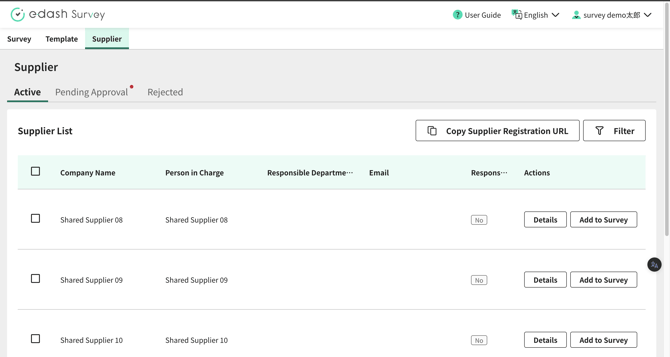
Move to the Supplier List Screen and Register Suppliers for the Survey From the "Active" tab on the Supplier List screen, click the "Add to Survey" button.
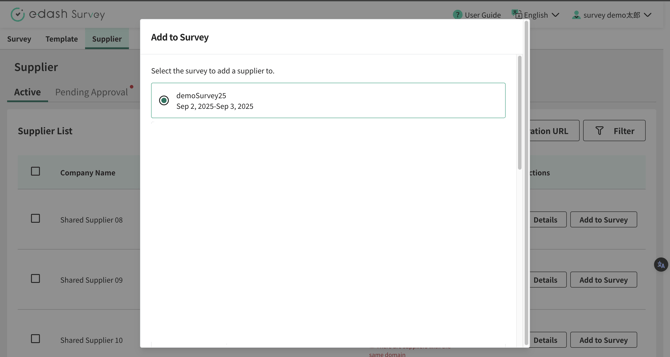
Select the survey you just created and click the "Confirm" button.
Other Survey Operations
Survey Preview and Deletion
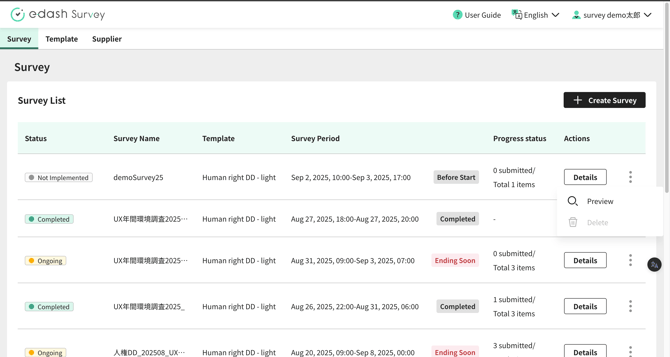
You can preview the actual response screen that suppliers will see by clicking "Preview" within the three-dot menu in the Survey List table.
You can delete a survey by clicking "Delete" within the three-dot menu in the Survey List table. Please note that only surveys that have not yet commenced can be deleted.
Translation Disclaimer
This article has been translated using automated translation software for your convenience. While e-dash makes reasonable efforts to ensure the accuracy of the translation, we do not guarantee its precision.
Should any questions arise regarding the accuracy of the content in the translated article, please refer to the official Japanese version for verification.