
Once a survey begins, you'll receive an email with the subject line "Survey Has Started." Follow these steps to begin providing your responses.
How to Start Responding
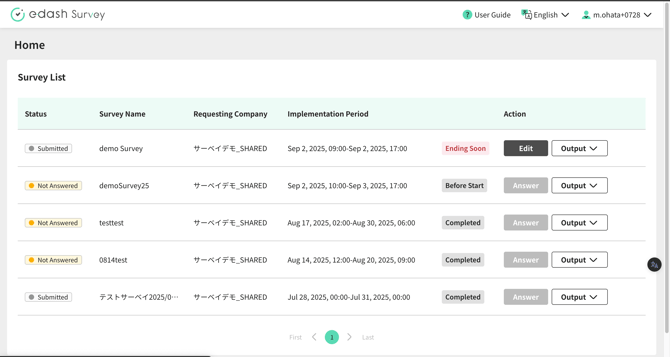
- Log in from the login screen provided in the email. Then, find the relevant survey on your Home screen.
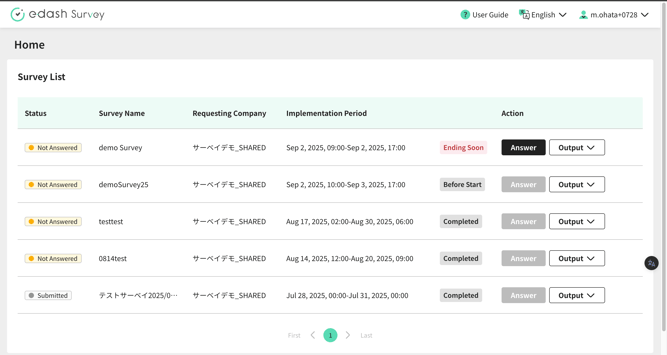
- Click the "Respond" button in the actions column for the survey you located in step 1. This will take you to the response screen.
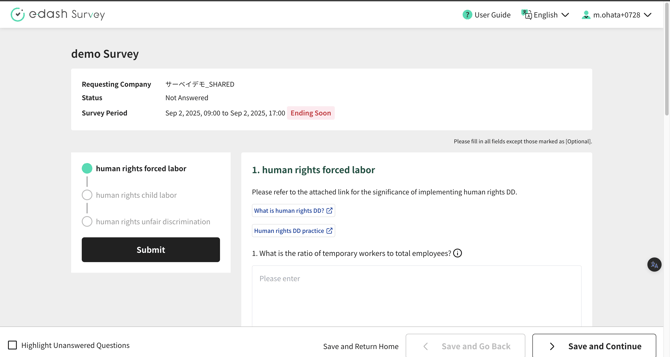
How to Respond
Saving Your Responses
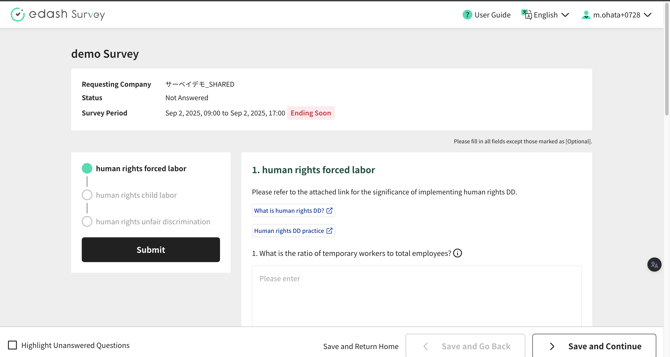
You can save your responses by clicking "Save and Return Home," "Save and Go Back," or "Save and Go Next" at the bottom of the screen. Responses are also automatically saved when you navigate between sections using the left-hand menu.
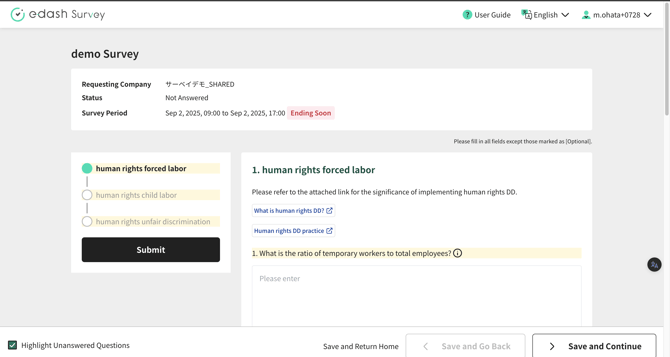
Identifying Unanswered Questions
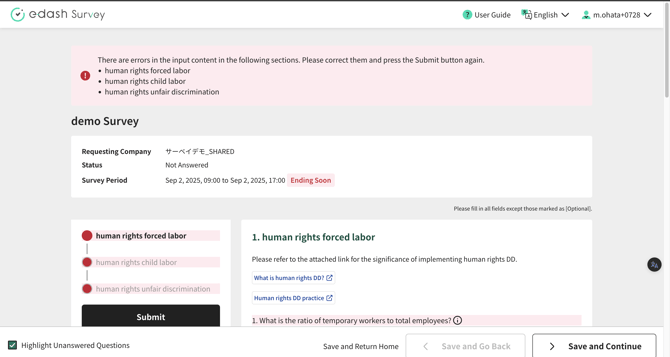
Check the "Highlight Unanswered Questions" box at the bottom of the screen to highlight any unanswered questions and the sections containing them.
Submitting Your Responses
Once you've completed all required questions, click the "Submit" button. If there are any required questions that haven't been answered, a red error message will appear.
Resubmitting Responses
After a successful submission, your submission status will change to "Submitted." You can resubmit your responses as many times as needed within the survey's active period. If you need to revise any answers, simply resubmit them before the deadline.
Translation Disclaimer
This article has been translated using automated translation software for your convenience. While e-dash makes reasonable efforts to ensure the accuracy of the translation, we do not guarantee its precision.
Should any questions arise regarding the accuracy of the content in the translated article, please refer to the official Japanese version for verification.